中文及本地化支持

这个locale设置取决于个人,omarchy系统还是多语言友好的。
已经装好了输入法底座fcitx5、fcitx5-gtk、fcitx5-qt
字体覆盖也默认安装了noto-fonts、noto-fonts-cjk、noto-fonts-emoji
生成区域设置
使用locale -a查询区域设置
C
C.utf8
en_US.utf8
POSIX
启用一个区域设置前,需要先生成它。
在 sudo /etc/locale.gen 中取消对应的注释,然后执行 sudo locale-gen。
注释掉某行,则会移除对应的区域设置。
nvim /etc/locale.gen输入/zh_CN回车 ,查找下一个结果n,查找上一个结果N
sudo locale-gen执行结果:
Generating locales...
  en_US.UTF-8... done
  zh_CN.UTF-8... done
Generation complete.
设置当前区域
生成完 locale 之后,还需要告诉系统“默认用哪个”。
最直接的方式,是写入 /etc/locale.conf:
LANG=zh_CN.UTF-8
LC_MESSAGES=en_US.UTF-8
保留控制程序界面的语言和提示信息为en_US帮助排查及分享报错
检查当前生效状态,一下三种方法都可以:
cat /etc/locale.conf
locale
localectl list-locales | rg 'zh_CN|en_US'
字体设置
omarchy默认使用JetbrainsMono Nerd字体作为终端和系统字体,由fontconfig来统一管理
omarchy也有一套自带的字体管理脚本:
omarchy-font-setomarchy-font-listomarchy-font-current
要设置系统字体,可以使用快捷键 Super+ Alt + Space 选择 style 再选择 font,会调用脚本omarchy-font-list查询系统可用的字体
要安装其他字体,可以使用快捷键 Super+ Alt + Space 选择 install、style、font能看到推荐的字体
omarchy-font-set
omarchy-font-set 命令,用来批量切换终端和系统里使用的等宽字体。
#!/bin/bash
# Set the system-wide monospace font that should be used by the terminal, hyprlock, waybar, swayosd, etc.
# The font name must be one of the ones returned by omarchy-font-list.
font_name="$1"
if [[ -n $font_name ]]; then
if fc-list | grep -iq "$font_name"; then
if [[ -f ~/.config/alacritty/alacritty.toml ]]; then
sed -i "s/family = \".*\"/family = \"$font_name\"/g" ~/.config/alacritty/alacritty.toml
fi
if [[ -f ~/.config/kitty/kitty.conf ]]; then
sed -i "s/^font_family .*/font_family $font_name/g" ~/.config/kitty/kitty.conf
pkill -USR1 kitty
fi
if [[ -f ~/.config/ghostty/config ]]; then
sed -i "s/font-family = \".*\"/font-family = \"$font_name\"/g" ~/.config/ghostty/config
pkill -SIGUSR2 ghostty
fi
sed -i "s/font_family = .*/font_family = $font_name/g" ~/.config/hypr/hyprlock.conf
sed -i "s/font-family: .*/font-family: '$font_name';/g" ~/.config/waybar/style.css
sed -i "s/font-family: .*/font-family: '$font_name';/g" ~/.config/swayosd/style.css
xmlstarlet ed -L \
-u '//match[@target="pattern"][test/string="monospace"]/edit[@name="family"]/string' \
-v "$font_name" \
~/.config/fontconfig/fonts.conf
omarchy-restart-waybar
omarchy-restart-swayosd
if pgrep -x ghostty; then
notify-send -u low " You must restart Ghostty to see font change"
fi
omarchy-hook font-set "$font_name"
else
echo "Font '$font_name' not found."
exit 1
fi
else
echo "Usage: omarchy-font-set <font-name>"
fi
- 先接收一个字体名,例如
omarchy-font-set "JetBrainsMono Nerd Font"。 - 用
fc-list检查系统里是否真的安装了这个字体。 - 如果字体存在,就批量修改几处配置文件中的字体字段,包括:
~/.config/alacritty/alacritty.toml~/.config/kitty/kitty.conf~/.config/ghostty/config~/.config/hypr/hyprlock.conf~/.config/waybar/style.css~/.config/swayosd/style.css~/.config/fontconfig/fonts.conf
- 修改完以后,脚本会重启 Waybar 和 SwayOSD,并给 Kitty、Ghostty 发送重载信号。
- 最后再触发一次
font-sethook,方便用户在切换字体后执行自己的额外动作。
omarchy-font-current
omarchy-font-current 用来查询 Omarchy 当前认定的“正在使用的字体”。
#!/bin/bash

# Returns the name of the current monospace font being used by extracting it from the Waybar stylesheet.
# This can be changed using omarchy-font-set.

grep -oP 'font-family:\s*["'\'']?\K[^;"'\'']+' ~/.config/waybar/style.css | head -n1
它的判断方式其实比较朴素:直接去读取 ~/.config/waybar/style.css 里的第一条 font-family。因此如果你手动改了 Kitty、Alacritty、Ghostty 和 Hyprlock,却没有同步改 Waybar,那么 Omarchy 仍然会认为“当前字体”还是 Waybar 里那一个。
omarchy-font-list
omarchy-font-list 用来列出系统里可供 omarchy-font-set 选择的等宽字体。
#!/bin/bash

# Returns a list of all the monospace fonts available on the system that can be set using omarchy-font-set.

fc-list :spacing=100 -f "%{family[0]}\n" | grep -v -i -E 'emoji|signwriting|omarchy' | sort -u
实现方式是通过 fc-list :spacing=100 筛出等宽字体,再过滤掉 emoji、signwriting 和 omarchy 自己使用的特殊字体。
个人字体分享
其实用惯了JetBrainsMono系列的字体已经习惯了,可以老是觉得中文字体跟他格格不入,于是找到了MapleMono这套字体

该字体的特色是字形整洁、拥有手写风格的斜体、细粒度配置、内置 Nerd-Font、中英文 2:1 等宽

MapleMono字体下载
字体下载请前往:MapleMono字体下载
我个人是使用yay -S maplemono-nf-cn-unhinted下载的
下载完成后执行fc-list ':' file | grep Map检查,能看到安装的位置:
/usr/share/fonts/MapleMono-NF-CN-unhinted/MapleMono-NF-CN-ThinItalic.ttf:  #
/usr/share/fonts/MapleMono-NF-CN-unhinted/MapleMono-NF-CN-ExtraBoldItalic.ttf:
/usr/share/fonts/MapleMono-NF-CN-unhinted/MapleMono-NF-CN-LightItalic.ttf:
/usr/share/fonts/MapleMono-NF-CN-unhinted/MapleMono-NF-CN-Italic.ttf:
/usr/share/fonts/MapleMono-NF-CN-unhinted/MapleMono-NF-CN-ExtraBold.ttf:
/usr/share/fonts/MapleMono-NF-CN-unhinted/MapleMono-NF-CN-SemiBoldItalic.ttf:
/usr/share/fonts/MapleMono-NF-CN-unhinted/MapleMono-NF-CN-Light.ttf:
/usr/share/fonts/MapleMono-NF-CN-unhinted/MapleMono-NF-CN-SemiBold.ttf:
/usr/share/fonts/MapleMono-NF-CN-unhinted/MapleMono-NF-CN-Bold.ttf:
/usr/share/fonts/MapleMono-NF-CN-unhinted/MapleMono-NF-CN-Thin.ttf:
/usr/share/fonts/MapleMono-NF-CN-unhinted/MapleMono-NF-CN-MediumItalic.ttf:
/usr/share/fonts/MapleMono-NF-CN-unhinted/MapleMono-NF-CN-Regular.ttf:
/usr/share/fonts/MapleMono-NF-CN-unhinted/MapleMono-NF-CN-Medium.ttf:
/usr/share/fonts/MapleMono-NF-CN-unhinted/MapleMono-NF-CN-ExtraLightItalic.ttf:
/usr/share/fonts/MapleMono-NF-CN-unhinted/MapleMono-NF-CN-BoldItalic.ttf:
/usr/share/fonts/MapleMono-NF-CN-unhinted/MapleMono-NF-CN-ExtraLight.ttf:
MapleMono 是字体家族本体,NF 表示补上了 Nerd Font 图标,CN 表示包含中文字形,unhinted 则是无 hinting 版本,通常在高分屏上观感更自然。
后面的文件名表示的是同一套字体的不同字重和斜体样式:
Thin:极细ExtraLight:特细Light:细体Regular:常规Medium:中等偏粗SemiBold:半粗Bold:粗体ExtraBold:特粗Italic:斜体
组合起来就很好理解了,例如:
MapleMono-NF-CN-Regular.ttf:常规字重,正常体MapleMono-NF-CN-Italic.ttf:常规字重,斜体MapleMono-NF-CN-Medium.ttf:中等偏粗,正常体MapleMono-NF-CN-MediumItalic.ttf:中等偏粗,斜体MapleMono-NF-CN-Bold.ttf:粗体,正常体MapleMono-NF-CN-BoldItalic.ttf:粗体,斜体
MapleMono字体安装
前边提到了使用系统快捷键来进行字体安装,Maple这个系列的字体spacing=90不在omarchy-font-list查询列表中。
这个不影响使用,只是omarchy默认推荐标准monospace
要手动安装的话,执行:omarchy-font-set "MapleMono NF CN"即可(这里我使用的是regular字形,其他字形可以自己修改,比如Medium字形使用omarchy-font-set "MapleMono NF CN Medium")
输入法
Omarchy 默认安装了 fcitx5、fcitx5-gtk、fcitx5-qt 作为输入法底座,并且会在 Hyprland 会话启动时自动拉起 fcitx5。
雾凇拼音
我当前实际使用的中文输入方案是:
fcitx5 + fcitx5-rime + 雾凇拼音(rime_ice)
你需要从omarchy仓库安装fcitx5-rime,然后从AUR仓库安装rime-ice-git雾凇拼音,然后启用雾凇拼音的预设:
编辑~/.local/share/fcitx5/rime/default.custom.yaml,写入预设:
patch:
  __include: rime_ice_suggestion:/
更多的设置可以去rime-icegithub库,以及安装词库等。输入法配置工具推荐使用图形工具fcitx5-configtool来完成(同样omarchy仓库安装),直观方便。配置完成需要重启fcitx5,你可以点击右上角键盘图标来重启
更多的rime主题可以参考rime-skin,rime的配置方法可以参考rime官网,补充博客:Rime输入法配置方案
补充:需要rime配置管理的可以下载东风破
薄荷拼音
是叫作 oh-my-rime 的输入法,快速初始化rime
参考:
双系统启动
如果你安装了双系统,我这里以window + omarchy为例子
omarchy使用limine来做系统引导管理,在BIOS中设置limine优先启动,进入omarchy后
使用sudo limine-list能看到limine菜单
Omarchy
├─ linux
└─ Snapshots
   ├─ 2026-04-06 18:29:23
   ├─ 2026-04-06 18:27:33
   ├─ 2026-04-06 18:21:57
   ├─ 2026-04-06 18:21:06
   └─ 2026-04-06 15:17:02
EFI fallback
使用sudo limine-scan可以扫描到windows的EFI分区,按照引导设置即可,后续启动windows在limine启动菜单中选择即可
Available EFI Boot Entries:
#  | Name                 | GPT UUID                             | EFI Path
---|----------------------|--------------------------------------|---------------------------------
1  | Windows Boot Manager | 66413065-901b-43da-a8b0-111c6c736e48 | /EFI/Microsoft/Boot/bootmgfw.efi
2  | Limine               | 667fbe2f-334a-4cab-b328-ea10d06a14ad | /EFI/limine/limine_x64.efi

 Use ↑/↓ to select a boot entry (1-2), or type [c]ancel to abort.

Your input:
omarchy配置修改
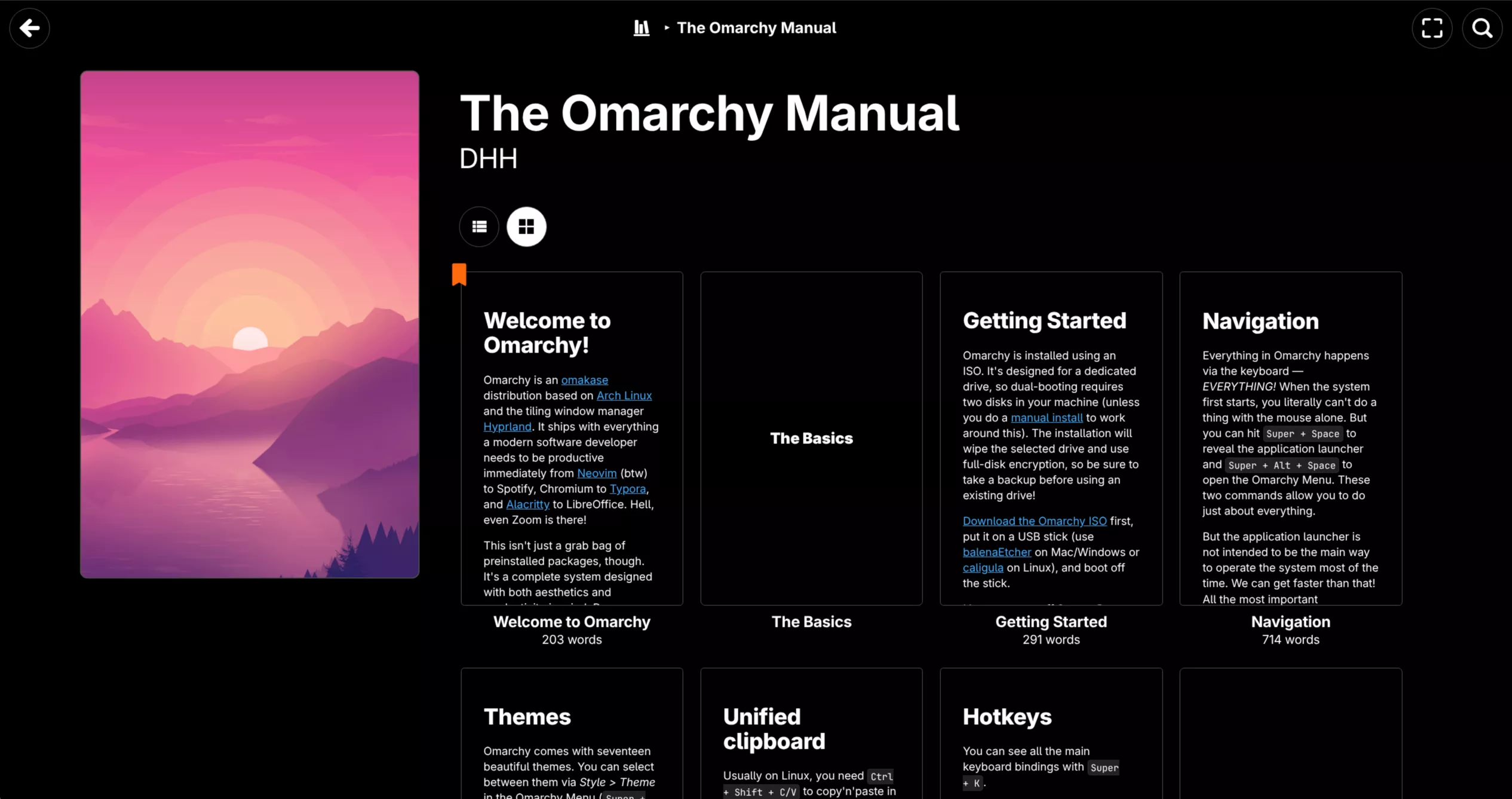
Omarchy主要通过位于~/.config中的配置文件进行设置。
位于~/.local/share/omarchy中的文件属于Omarchy本身,考虑到系统升级,不建议直接修改该文件的配置
如果需要更改~/.local/share/omarchy中的任何内容,应改为在~/.config中覆盖相应值。
~/.config中关键文件及内容:
| 文件路径 | 目的与说明 |
|---|---|
~/.config/hypr/hyprland.conf | 控制快捷键、默认应用以及 Hyprland 的所有内容。了解更多关于 Hyprland 配置的信息。 |
~/.config/hypr/monitors.conf | 控制显示器、分辨率和位置。 |
~/.config/hypr/hypridle.conf | 控制您的待机/睡眠设置。通常无需更改。 |
~/.config/hypr/hyprlock.conf | 控制您的锁屏界面,但它是通过符号链接链接到您的主题来进行样式设置的。 |
~/.config/waybar/config.jsonc | 控制与 Waybar 一起运行的顶部栏。了解更多关于 Waybar 配置的信息。 |
~/.config/waybar/style.css | 控制顶部栏设计,但它与您的主题有符号链接。 |
~/.config/walker/config.toml | 控制与 Walker 一起运行的启动器。 |
~/.config/alacritty/alacritty.toml | 控制您的终端。 |
~/.config/uwsm/default | 控制您的默认编辑器。更改后需要重新启动 Hyprland。 |
~/.XCompose | 设置快捷表情符号和姓名/邮箱自动补全选项。更改后请务必运行 omarchy-restart-xcompose。 |
备份配置方案
备份常规使用CP、git也能做管理,但是维护成本还是很高的,有更好的方案:
使用GNU Stow:
参考:使用 GNU Stow 管理 Linux 系统中的文件与配置:从入门到精通
首先需要安装stow,sudo pacman -Sy stow安装或者使用omarchy菜单安装
Stow 的工作原理
Stow 本质上是一个符号链接管理器(symlink farm manager)。它不会把配置文件直接复制到 ~/.config、~/.bashrc 这些位置,而是把真实文件统一收纳到一个目录里,再由 stow 批量创建符号链接。
这样做的好处是:
- 配置文件只有一份真实副本,修改和备份都更集中
- 可以按软件拆分成不同“包”
- 非常适合配合 Git 做版本管理和跨设备同步
显示器配置
如果你熟悉hyprland,可以直接编辑配置文件~/.config/hypr/monitors.conf
如果不太熟悉的话,推荐安装sudo pacman -Sy nwg-displays 这个GUI配置工具,能很方便的帮助你配置多显示器等
键盘鼠标触控板
该部分所有设置都在~/.config/hypr/input.conf 中完成,也可以通过 Omarchy 菜单里的“设置 > 输入”(Super + Alt + Space)进入。
默认配置如下: 参数修改需要参考:hyprland input
# Control your input devices
# See https://wiki.hypr.land/Configuring/Variables/#input
input {
  # Use multiple keyboard layouts and switch between them with Left Alt + Right Alt
  # kb_layout = us,dk,eu

  # Use a specific keyboard variant if needed (e.g. intl for international keyboards)
  # kb_variant = intl

  kb_layout = us
  kb_options = compose:caps # ,grp:alts_toggle

  # Change speed of keyboard repeat
  repeat_rate = 40
  repeat_delay = 600

  # Start with numlock on by default
  numlock_by_default = true

  # Increase sensitivity for mouse/trackpad (default: 0)
  # sensitivity = 0.35

  # Turn off mouse acceleration (default: false)
  # force_no_accel = true

  touchpad {
    # Use natural (inverse) scrolling
    # natural_scroll = true

    # Use two-finger clicks for right-click instead of lower-right corner
    # clickfinger_behavior = true

    # Control the speed of your scrolling
    scroll_factor = 0.4

    # Enable the touchpad while typing
    # disable_while_typing = false

    # Left-click-and-drag with three fingers
    # drag_3fg = 1
  }
}

# Scroll nicely in the terminal
windowrule = match:class (Alacritty|kitty), scroll_touchpad 1.5
windowrule = match:class com.mitchellh.ghostty, scroll_touchpad 0.2

# Enable touchpad gestures for changing workspaces
# See https://wiki.hyprland.org/Configuring/Gestures/
# gesture = 3, horizontal, workspace
看配置的注释结合hyprland即可
omarchy的默认配置我认为已经完美,而且针对终端的触摸板滚动做了优化。我这里只修改了触摸板的滚动方式,更喜欢自然滚动,取消natural_scroll = true的注释即可
自定义快捷键(bindings.lua)
Omarchy 的个人快捷键覆盖统一写在 ~/.config/hypr/bindings.lua,它在 Omarchy 默认配置之后加载,所以系统更新默认键位不会覆盖你的个人设置。
查看当前所有绑定:
omarchy menu keybindings --print
新增绑定用 o.bind(按键, 描述, 命令)。例如我把 Super + Shift + G 绑给 Thunderbird:
o.bind("SUPER + SHIFT + G", "Thunderbird", { launch = "thunderbird" })
{{ note(header="💡 注意", body="如果目标按键已被默认绑定占用,必须先 hl.unbind 解绑再重新绑定,否则原绑定依然生效(甚至优先触发)。
例如 SUPER+SHIFT+G 在 Omarchy 预装应用绑定里是 Signal(/usr/share/omarchy/default/hypr/bindings/applications.lua),而且这个绑定不会出现在 omarchy menu keybindings --print 的列表里,很容易漏查。
有些预装应用绑定在按键对应的应用未安装时会弹出安装提示,遇到"按了键却让我装软件"基本就是撞上了这类隐藏绑定。") }}
-- Unbind existing SUPER+SHIFT+G (was: Signal via Omarchy preinstalled app binding)
hl.unbind("SUPER + SHIFT + G")
o.bind("SUPER + SHIFT + G", "Thunderbird", { launch = "thunderbird" })
{ launch = ... } 会被 Omarchy 用 uwsm-app 包装启动,比裸命令字符串更规范。
修改保存后 Hyprland 会自动重载,手动校验:
hyprctl reload && hyprctl configerrors
截图 OCR 中英混合识别
Omarchy 的文字提取快捷键 Super + Ctrl + PrtScr(omarchy capture text)底层调用的是 tesseract,语言由环境变量 OMARCHY_OCR_LANGS 控制,默认只有 eng——这就是默认状态下中文识别一塌糊涂的原因。
对应脚本 /usr/share/omarchy/bin/omarchy-capture-text 的核心一行:
grim -g "$SELECTION" - | tesseract stdin stdout --oem 1 --psm 6 \
  -l "${OMARCHY_OCR_LANGS:-eng}" --dpi 300 -c preserve_interword_spaces=1
第一步:安装中文语言包
sudo pacman -S tesseract-data-chi_sim
# 繁体另装 tesseract-data-chi_tra
tesseract --list-langs   # 确认 chi_sim 出现
第二步:设置环境变量
tesseract 多语言用 + 连接,chi_sim+eng 即中英混排一起识别。
写入 ~/.config/environment.d/omarchy-ocr.conf(uwsm 启动的 Hyprland 会在登录时读取):
OMARCHY_OCR_LANGS=chi_sim+eng
environment.d 只在登录时生效!改完不重新登录的话,按键唤起的 OCR 进程继承的还是 Hyprland 旧环境,依然只有英文。
排查方法:查 Hyprland 进程的实际环境变量
tr '\0' '\n' < /proc/$(pgrep -x Hyprland)/environ | grep OMARCHY_OCR_LANGS
不想重新登录,可以直接在绑定命令里显式注入变量,立即生效:
-- ~/.config/hypr/bindings.lua
hl.unbind("SUPER + CTRL + PRINT")
o.bind("SUPER + CTRL + PRINT", "Extract text (OCR, zh+en)",
       "OMARCHY_OCR_LANGS=chi_sim+eng omarchy-capture-text")
两处配置可以同时保留(双保险):绑定内注入保证立即生效,environment.d 保证以后登录也全局生效。
终端美化
我终端最终使用的是ghostty,结合omarchy已经预装的starship
ghosstty的安装直接使用omarchy的 install > Terminal 来安装
starship已经预装了,其实omarchy有一个默认的配置:
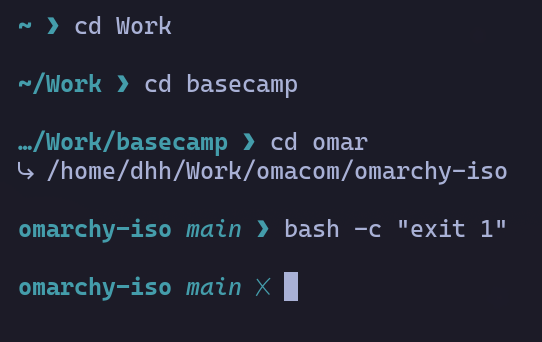
你也可以自己来配置starship,参考starship文档
或者直接安装预设方案即可,我是安装的Catppuccin Powerline Preset预设方案
waybar美化
omarchy有一些个人分享的waybar配置方案:
https://github.com/HANCORE-linux/waybar-themes?tab=readme-ov-file#screenshots-v2a
里边有安装方式,有些配置需要安装yay -S wttrbar这个天气应用,同时编辑config.jsonc配置,wttrbar的location及语言等请参考wttrbar的readme
启动logo及屏幕保护文字
参考:https://czyt.tech/post/omarchy-usage-notes/ 这两个都是omarchy极具特色的小功能,根据参考配置即可
软件推荐
卸载预装软件
卸载软件可用使用https://github.com/maxart/omarchy-cleaner脚本进行
首先卸载webapp,可以使用系统自带的 remove > Webapp
然后卸载安装的GUI应用
个人安装的软件
- QQ
yay -S linuxqq - wechat
yay -S wechat-bin - 飞书
yay -S feishu - 拓竹bambustudio
yay -S bambustudio-appimage - 立创EDA专业版
yay -S lceda-pro - 邮箱thunderbird
pacman -S thunderbird-i18n-zh-cn - 百度网盘
yay -S baidunetdisk-bin - 文献阅读器zotero
yay -S zotero-bin - 跨平台ssh工具
yay -S termius - tigervnc-viewer
tigervnc-viewer